No products in the cart.
Get in touch with our hands-on, fast and professional Support Team


– WooCommerce
– Bzotech App API
Go to Bzotech App API > Settings > REST API => Add Item. Use of the REST API with the generated keys will confirm to that user’s WordPress roles and capabilities.
Choose the level of access for this REST API key to READ/WRITE permission. Then click the “Generate API Key” button and WooCommerce will generate REST API keys for the selected user.

You also need to enter ‘Woocommerce consumer key’ and ‘Woocommerce consumer secret’ keys. To create these keys, go to WooCommerce > Settings > Advanced => REST API> Keys/Apps.
Click the “Add Key” button. In the next screen, add a description and select the WordPress user you would like to generate the key for. Use of the REST API with the generated keys will confirm to that user’s WordPress roles and capabilities.
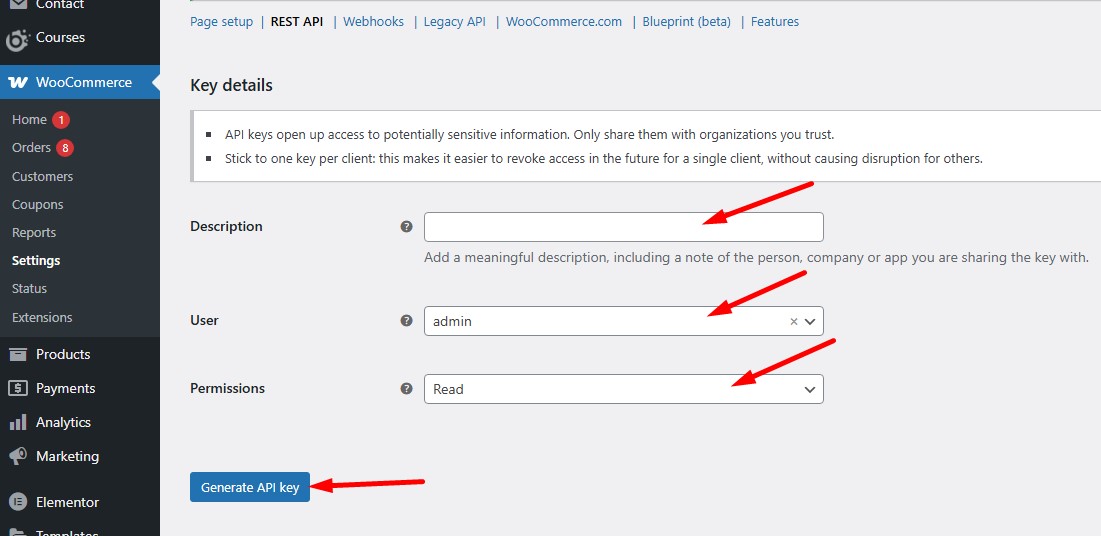
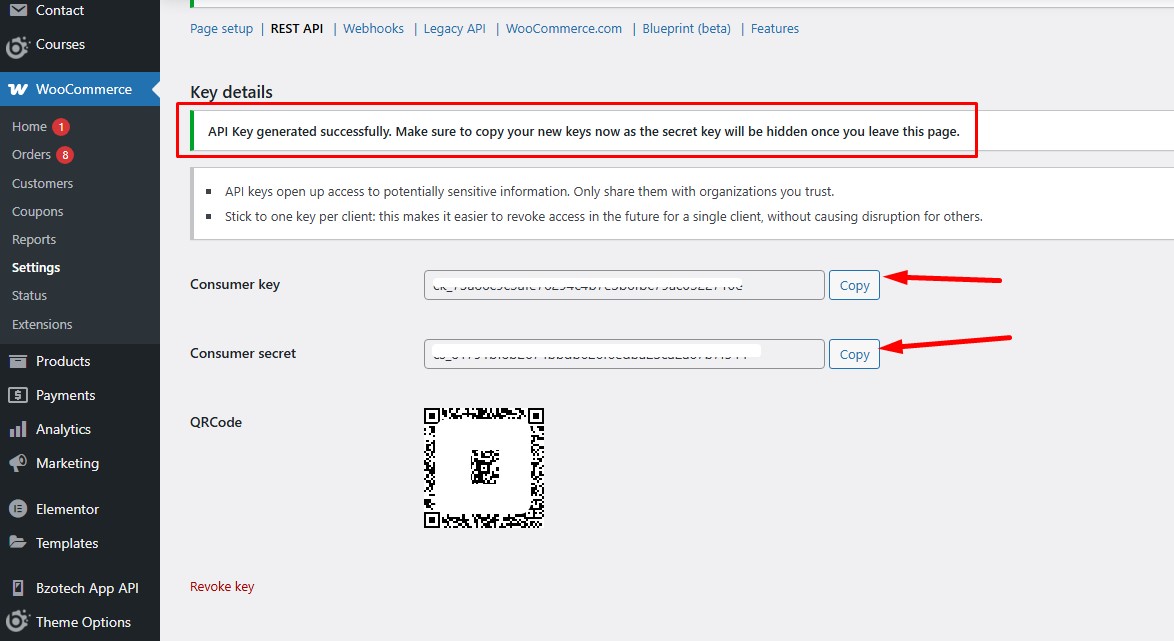
Before we start, make sure you have installed WordPress and Woocommerce and your website is up and running. If you have not installed WordPress yet, start from here: https://wordpress.org
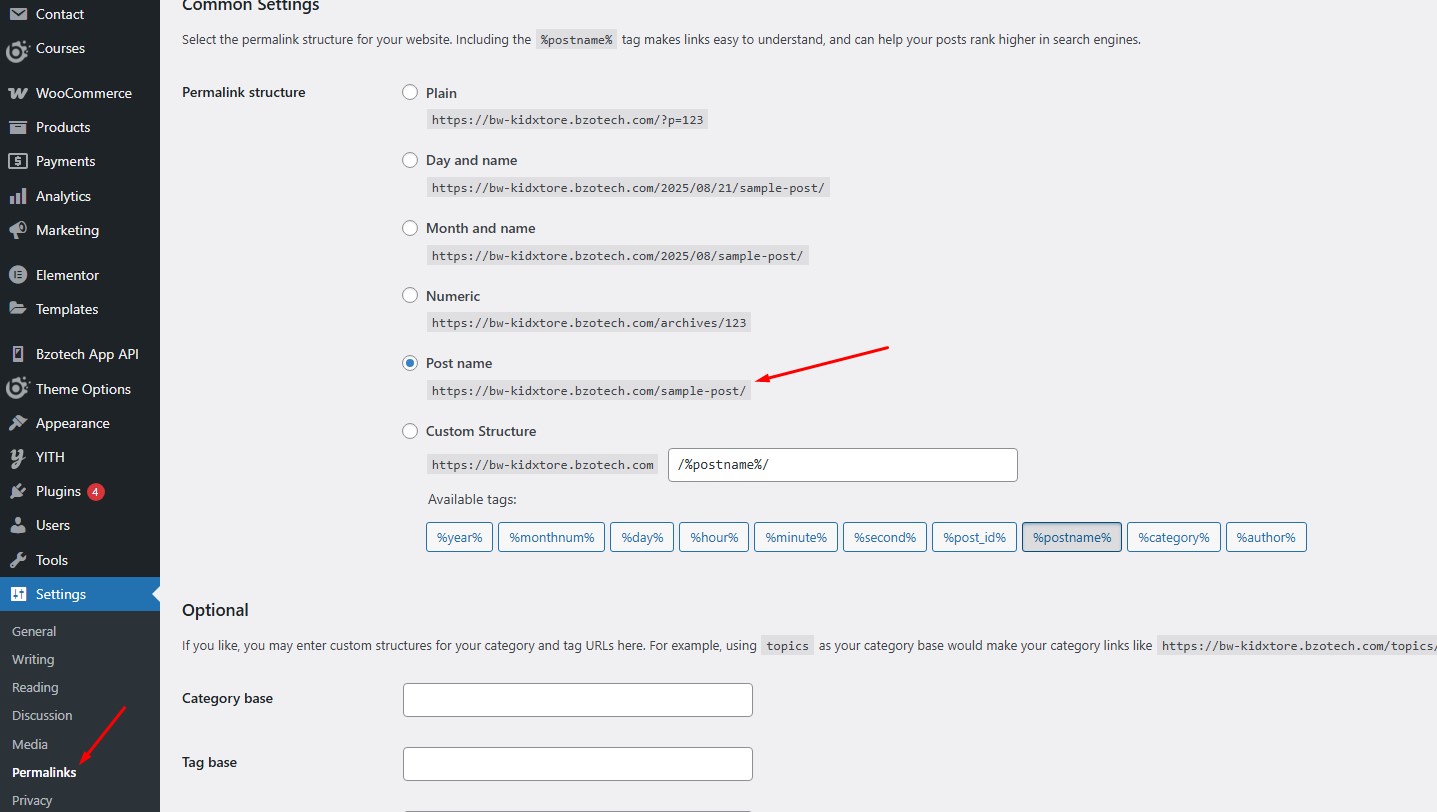
If you’re using non-pretty permalinks in Woocommerce, the REST API will not work. Configure pretty permalinks in Settings > Permalinks so that the custom endpoints are supported.
This section contains settings for primary color.
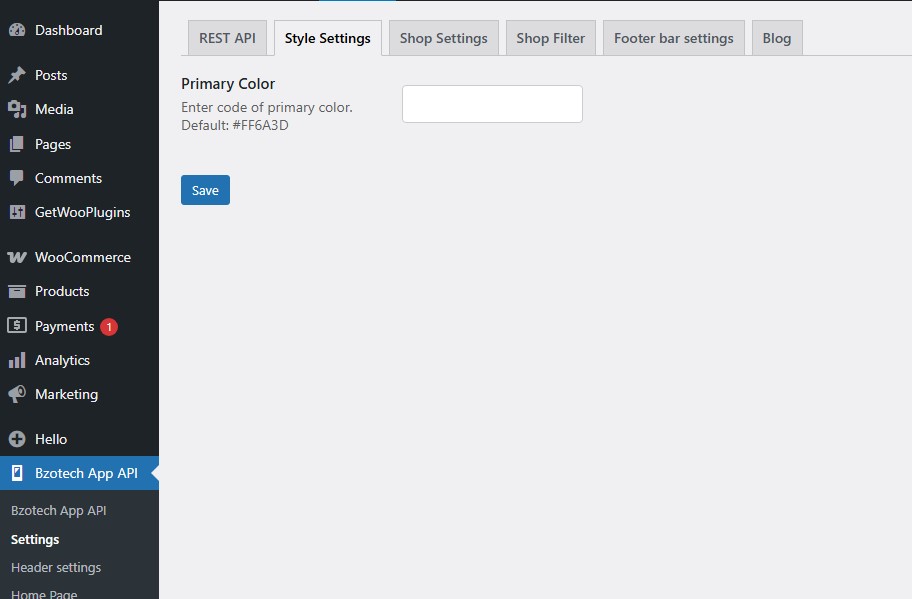
Primary color: Enter code of primary color. Default: #FF6A3D
This section contains settings for Shop page.
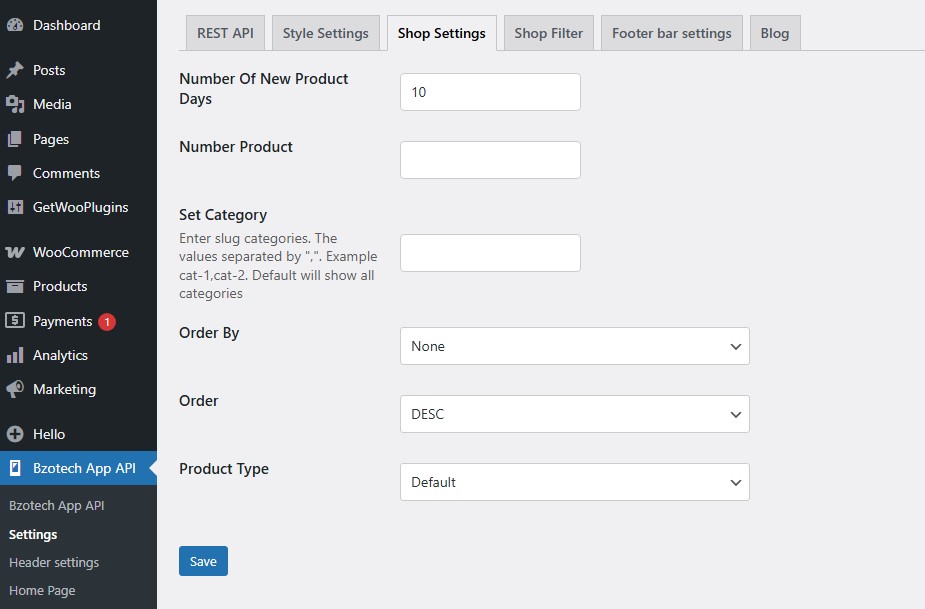
Number Of New Product Days: Display ‘New’ label for products created within this day value. For example, products created within 3000 days will show ‘New’ label.
Number Product: Number of product to show. Leave empty to show all products
Set category: Config which product categories to display. Enter slug categories. The values separated by “,”. Example cat-1,cat-2. Default will show all categories
Order by: Order products by: None (default), ID, Author, Title, Name, Date, Last Modified Date, Parent, Post views.
Order: “DESC” (descending) sorts from the highest to the lowest; “ASC” (ascending) sorts data from the lowest value to the highest.
Product Type: Select product type to display: Default, Featured Products, Best Sellers, On Sale (product has sale price), Top rate, Most view, Flash sale(simple product AND has end sale date).
This section allows to show or hide filter criteria in shop page.
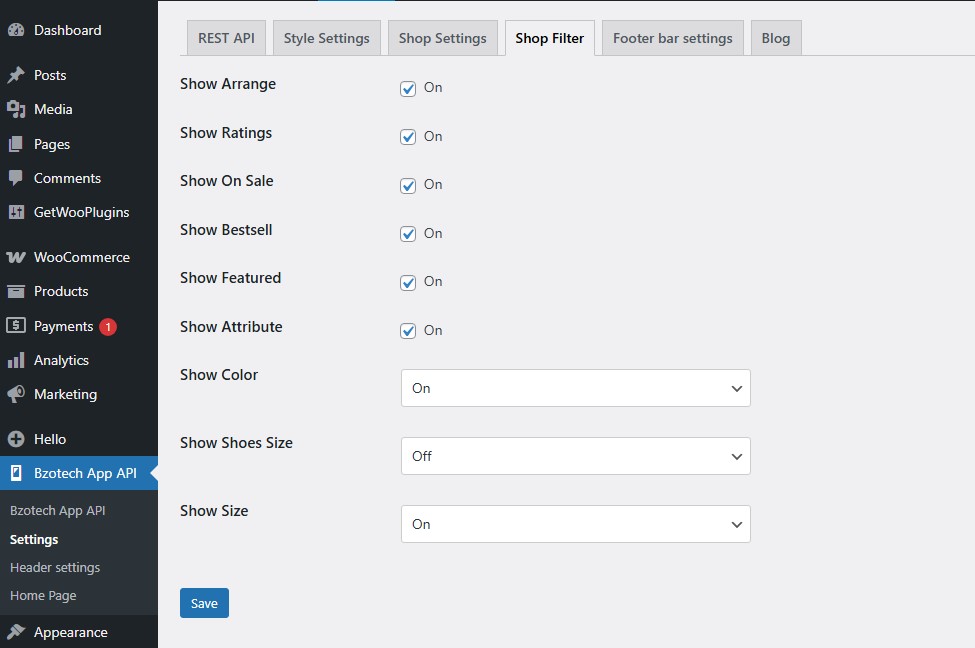
Number Of New Product Days: Display ‘New’ label for products created within this day value. For example, products created within 3000 days will show ‘New’ label.
Number Product: Number of product to show. Leave empty to show all products
Set category: Config which product categories to display. Enter slug categories. The values separated by “,”. Example cat-1,cat-2. Default will show all categories
Order by: Order products by: None (default), ID, Author, Title, Name, Date, Last Modified Date, Parent, Post views.
Order: “DESC” (descending) sorts from the highest to the lowest; “ASC” (ascending) sorts data from the lowest value to the highest.
Product Type: Select product type to display: Default, Featured Products, Best Sellers, On Sale (product has sale price), Top rate, Most view, Flash sale(simple product AND has end sale date).
This section contains settings for footer menu bar.
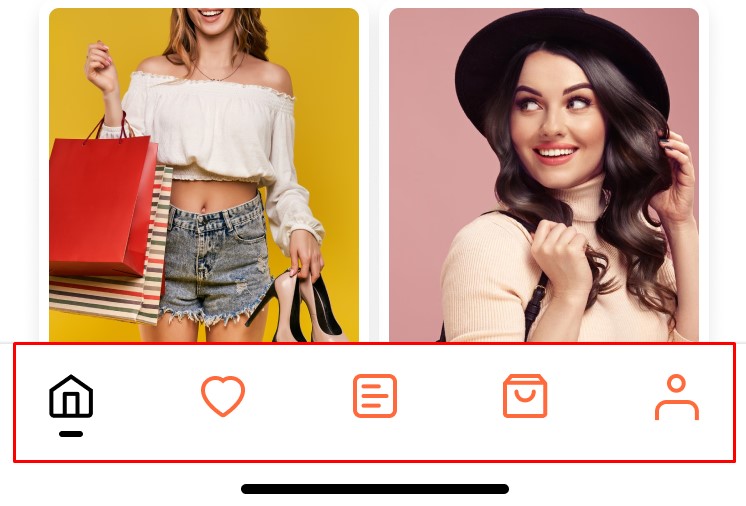
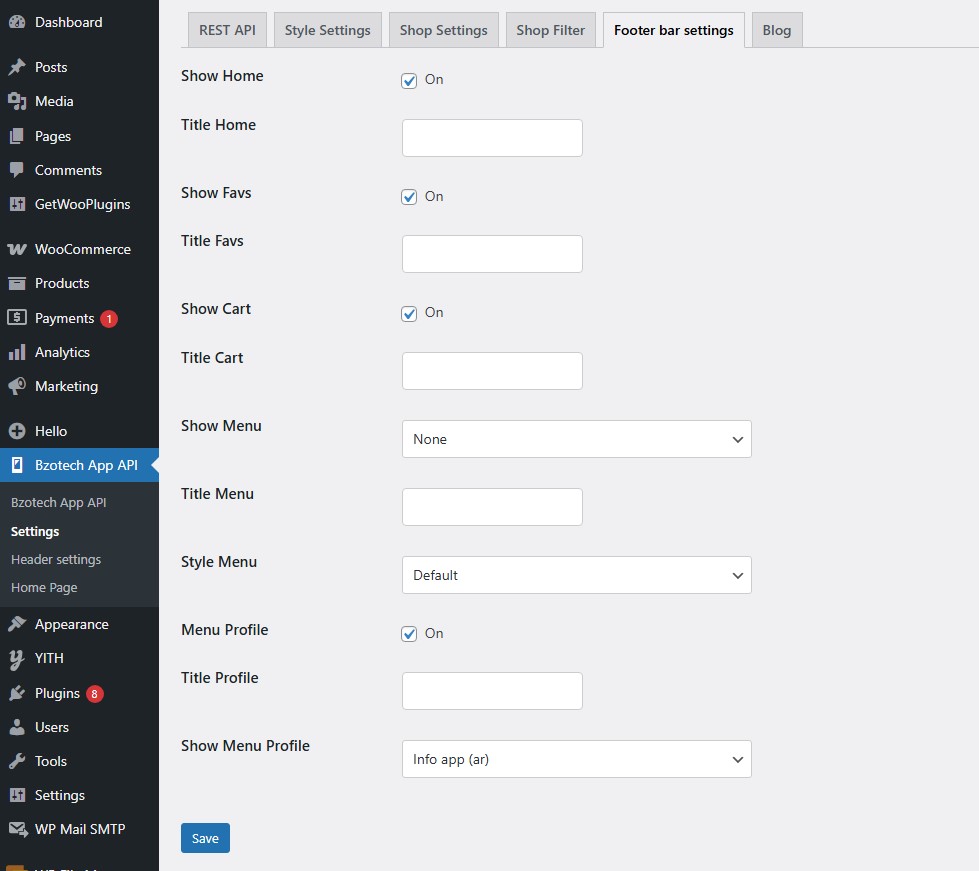
Show Home: Show Home menu or not
Title Home: Set title for menu Home
Show Favs: Show favourite (wishlist) items or not
Title Home: Set title for menu favourite
Show Cart: Show Cart menu or not
Title Cart: Set title for menu Cart
Show Menu: Select menu to display
Title Menu: Set title for selected menu
Style Menu: Set style for menu Menu
Menu Profile: Show User profile menu or not
Title Profile: Set title for menu Profile
Show Menu Profile: Select menu to display
This section contains header logo setting.
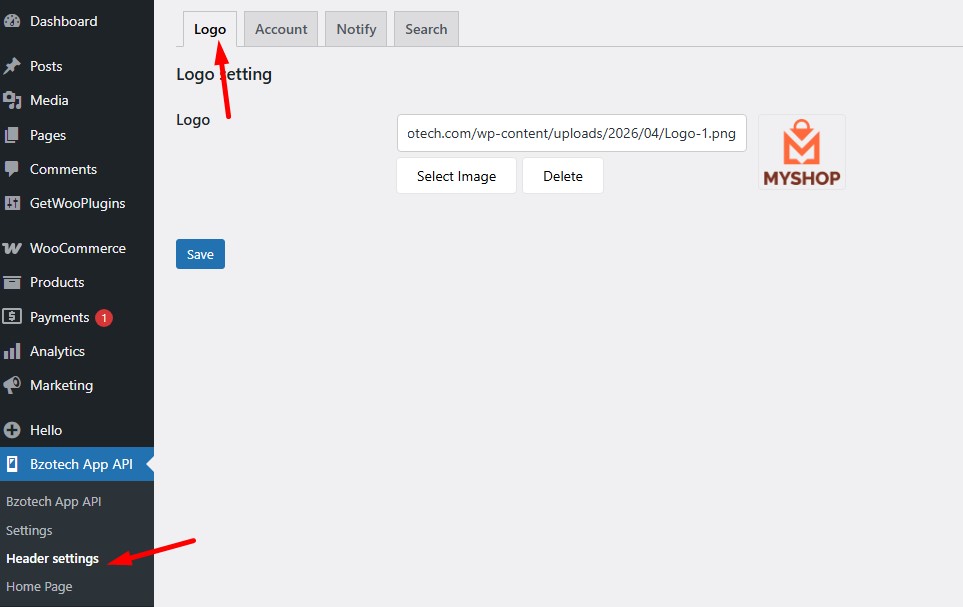
Logo: Select header logo
This section contains settings for homepage.

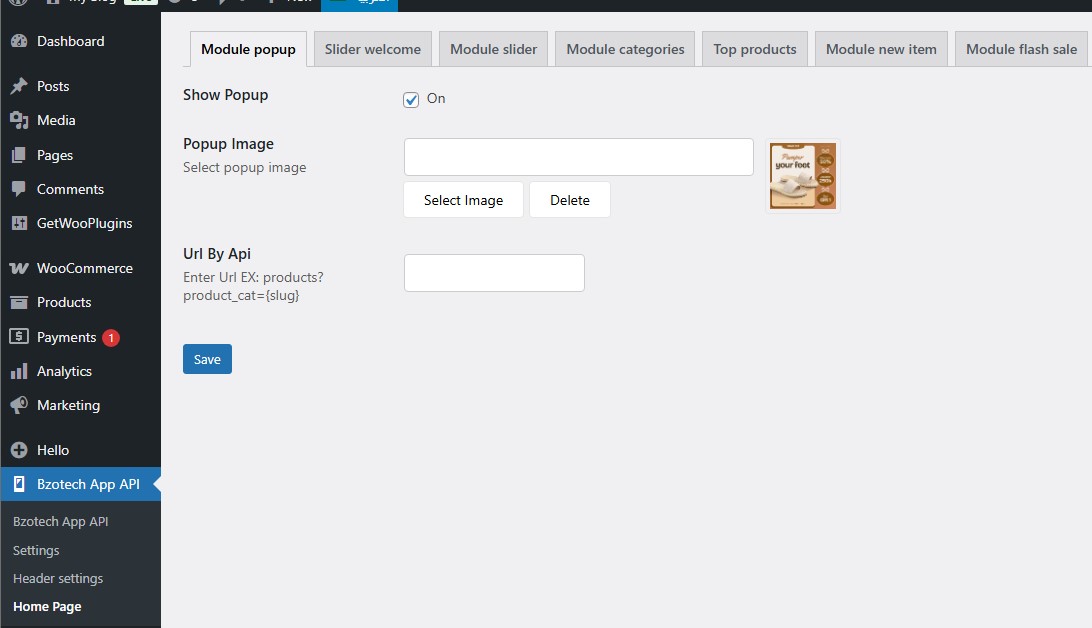
Show Popup: Show or hide Popup box
Popup image: Add popup banner
Url by Api: Enter Url EX: products?product_cat={slug}
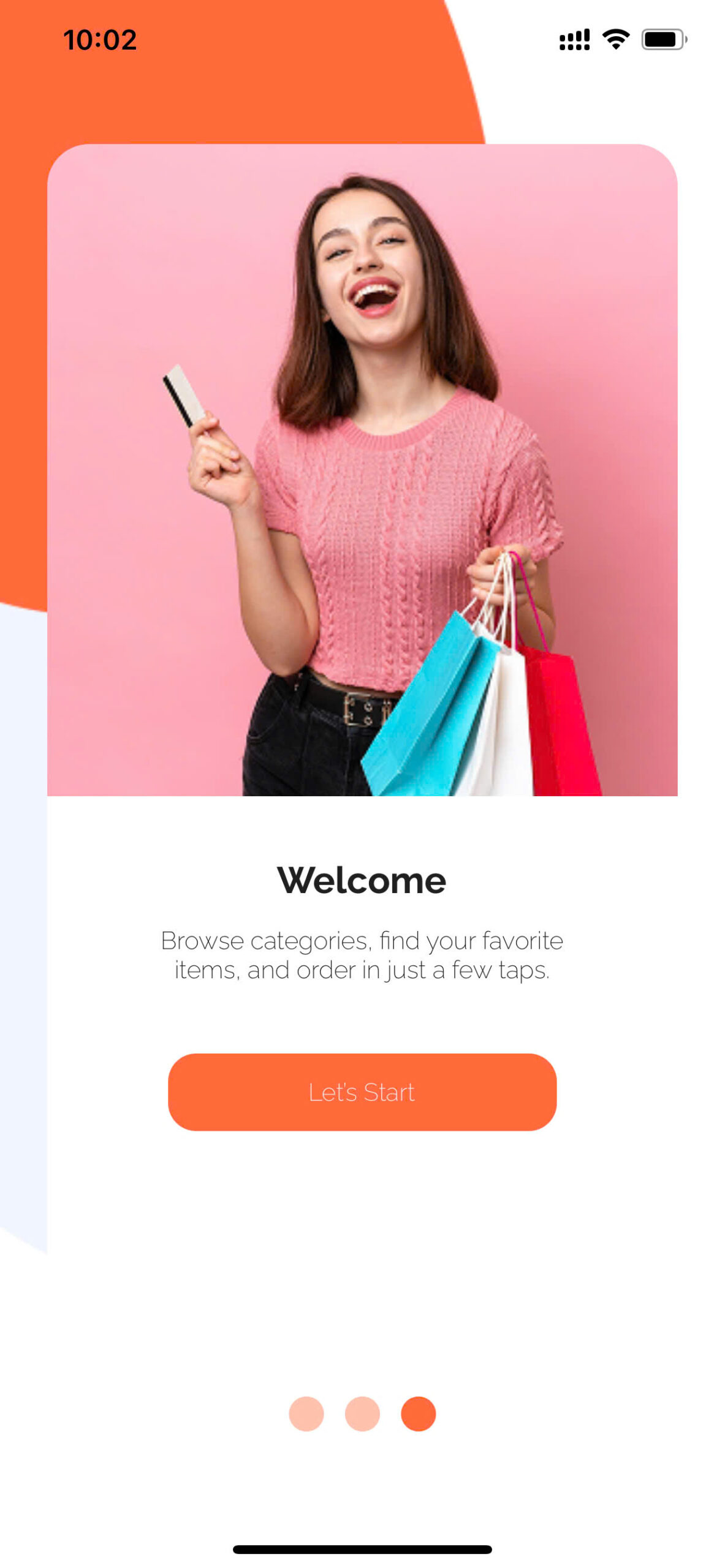
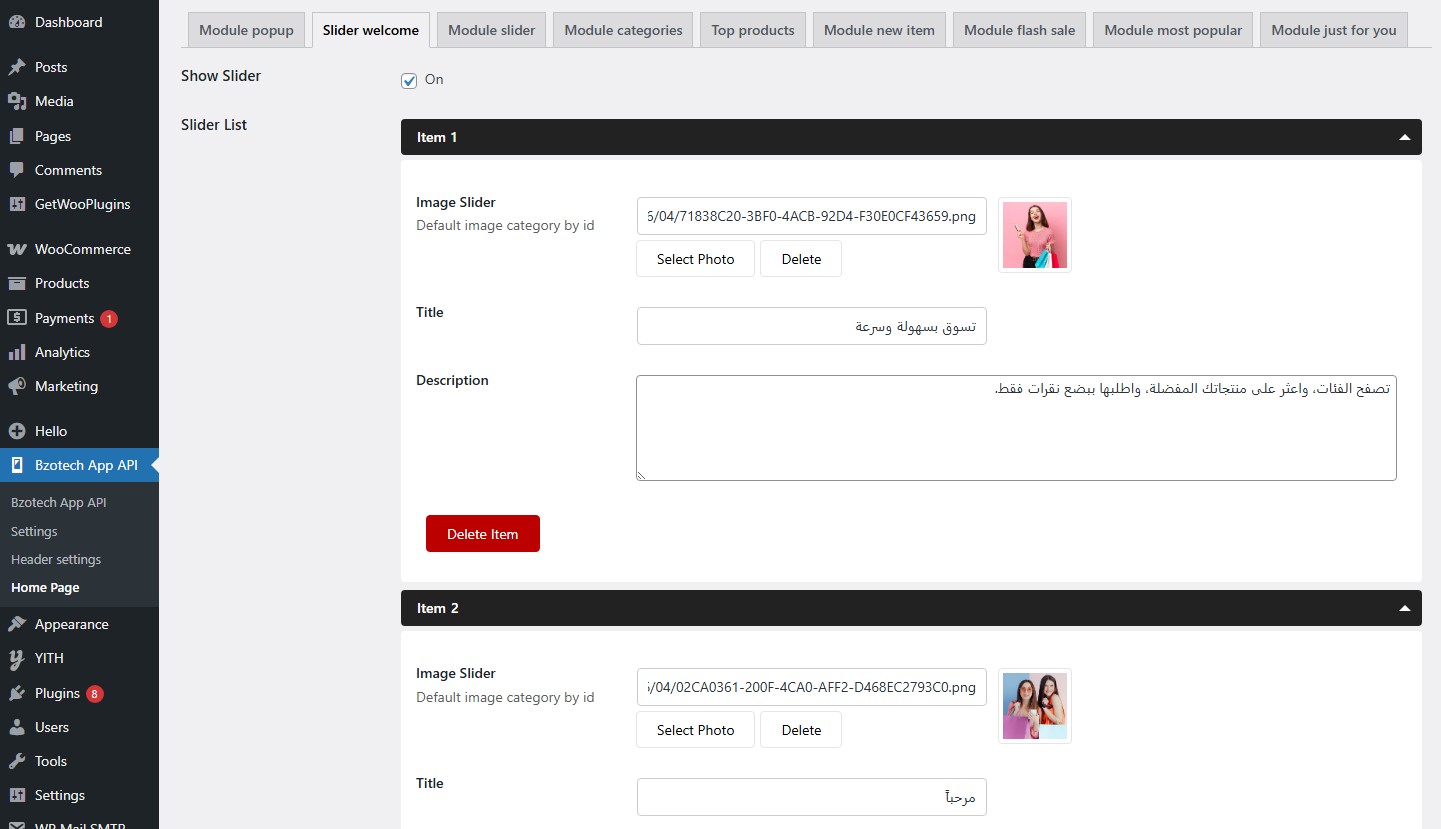
Show Slider: Show or hide Slider box
Slider List: Add new slider item
Image slider: Add slider banner
Title: Enter title for banner
Description: Enter description for banner
Url by Api: Enter Url EX: products?product_cat={slug}
Title: Enter title
Image Slider: Select category image slider
Delete Item: Delete category item
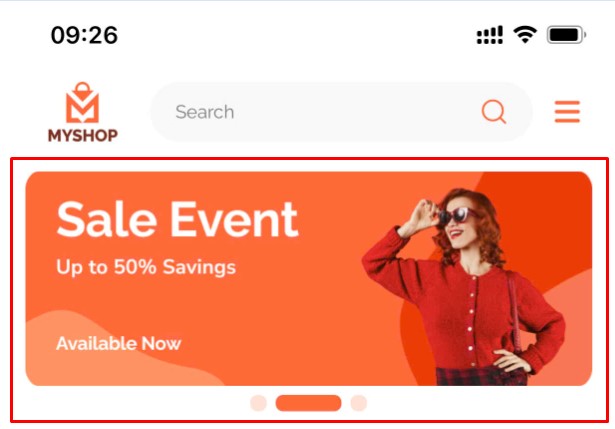
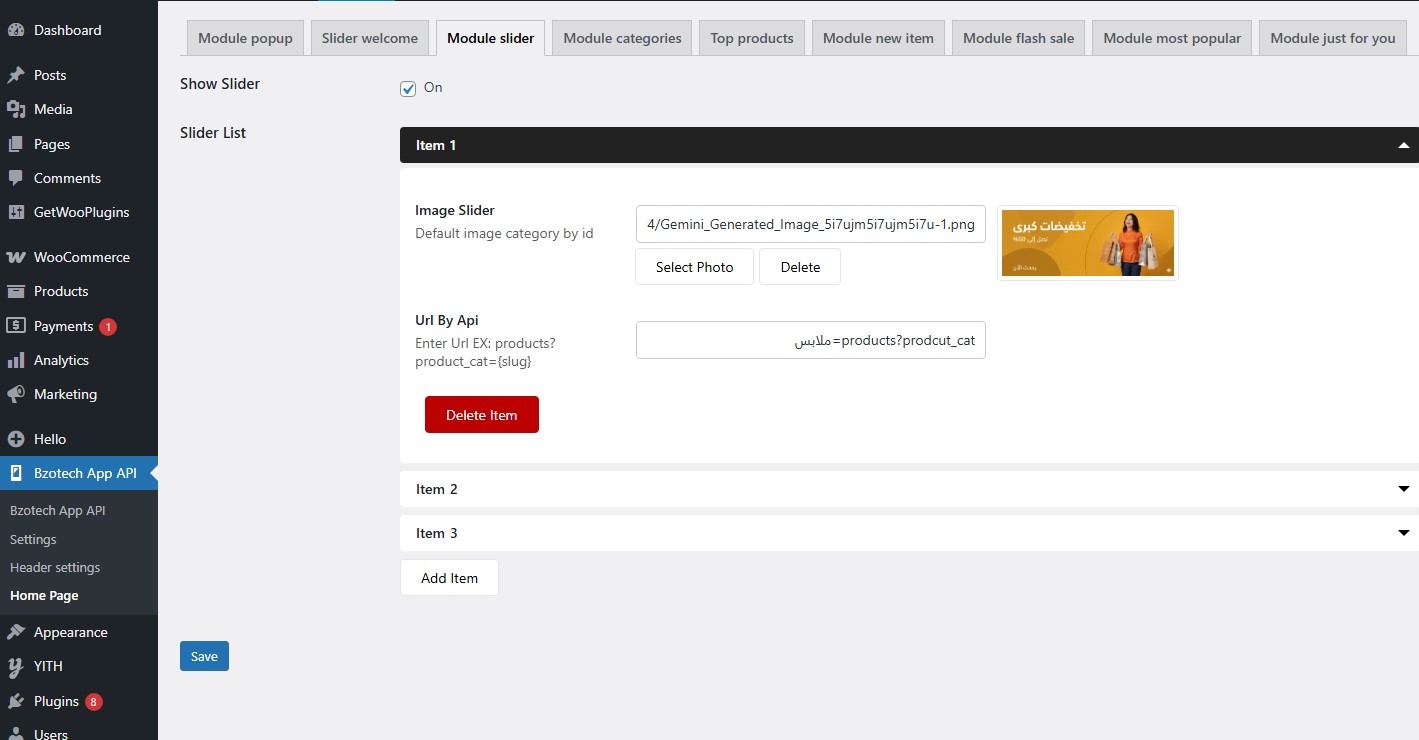
Show slider: Show or hide slider box
Add Item: Add new Banner item
Image Slider:
Url by Api: Enter Url EX: products?product_cat={slug}
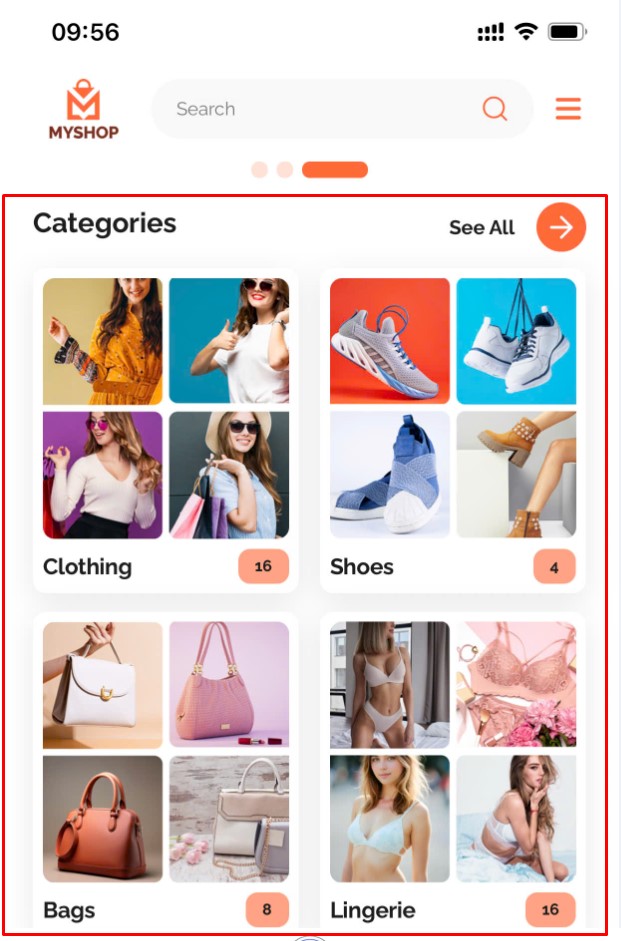
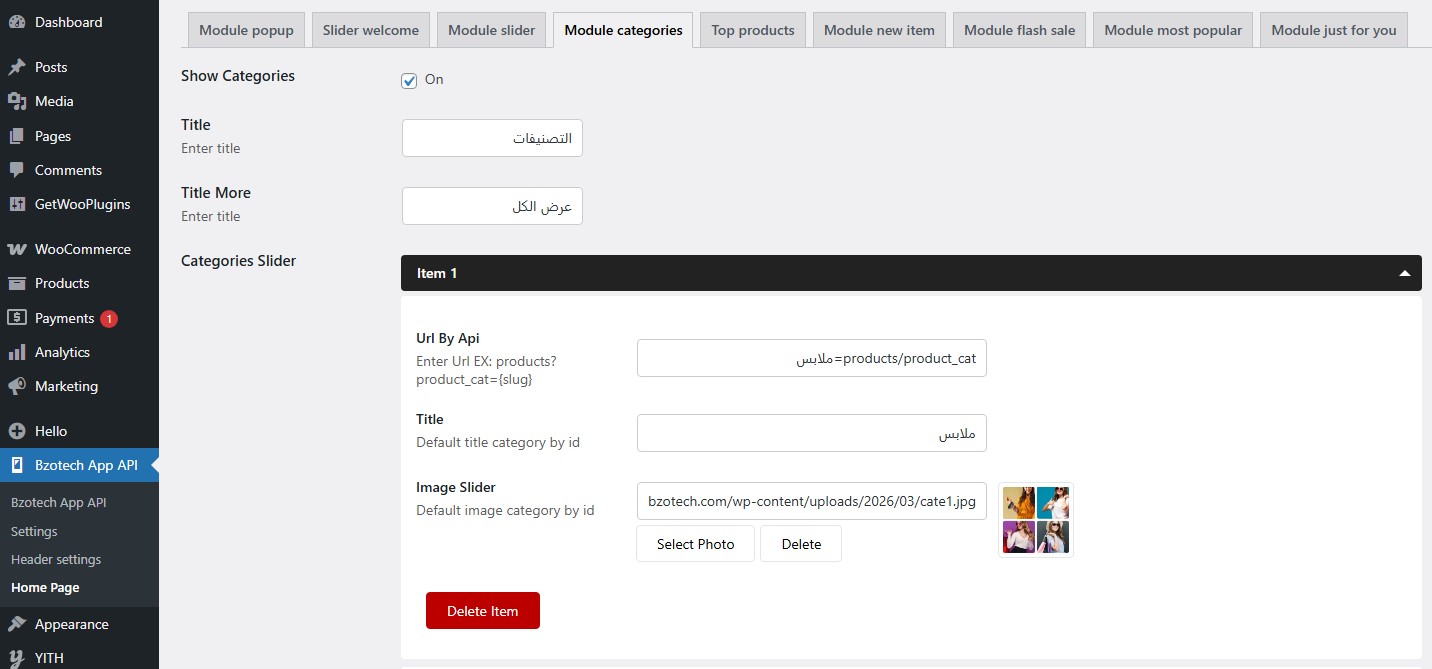
Show Categories: Show or hide Service box
Title: Enter title for category
Title More: Enter title for button view more item
Categories Slider:
Add Item: Add new Category item
Url by Api: Enter Url EX: products?product_cat={slug}
Title: Enter title
Image Slider: Select category image slider
Delete Item: Delete category item
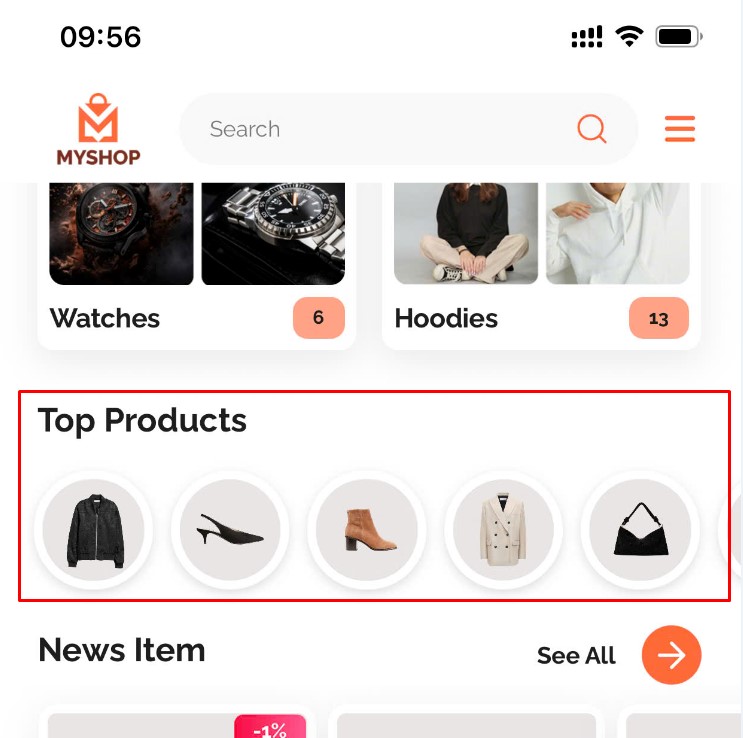
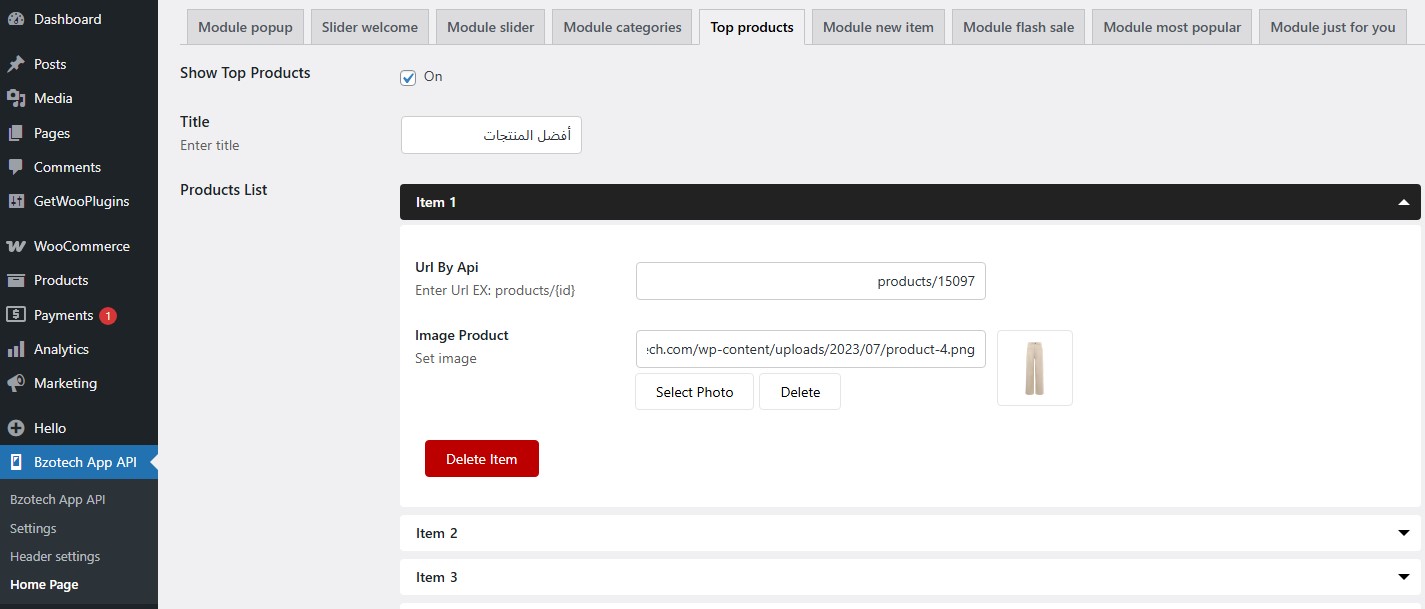
Show Top products: Show or hide Service box
Title: Enter title for category
Products list:
Add Item: Add new product
Url by Api: Enter Url EX: products?product_cat={slug}
Image prouct: Select product image
Delete Item: Delete item
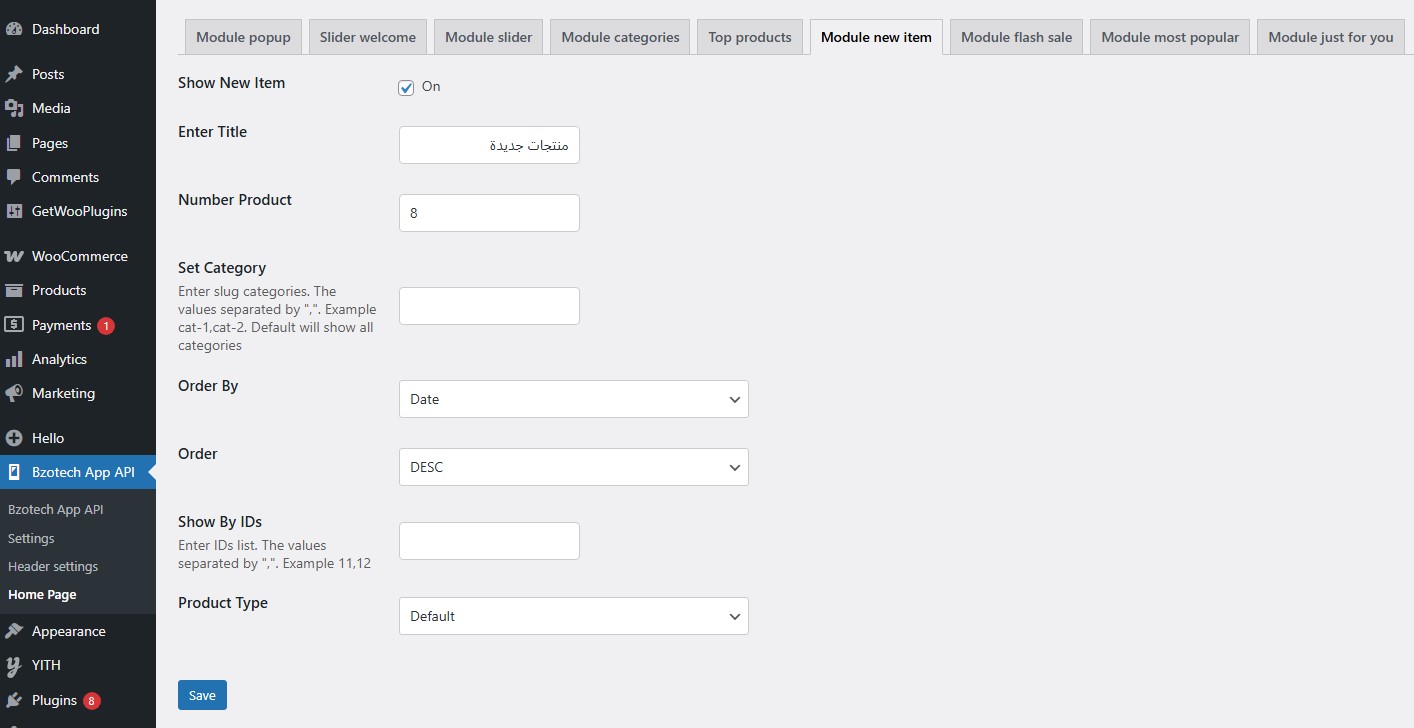
Show new item: Show or hide new item box
Enter title: Enter title for new item box
Number product: Enter the number of product displaying
Set category: Config which product categories to display. Enter slug categories. The values separated by “,”. Example cat-1,cat-2. Default will show all categories
Order by: Order products by: None (default), ID, Author, Title, Name, Date, Last Modified Date, Parent, Post views.
Order: “DESC” (descending) sorts from the highest to the lowest; “ASC” (ascending) sorts data from the lowest value to the highest.
Show by IDs: Enter IDs list. The values separated by “,”. Example 11,12
Product Type: Select product type to display: Default, Featured Products, Best Sellers, On Sale (product has sale price), Top rate, Most view, Flash sale(simple product AND has end sale date).
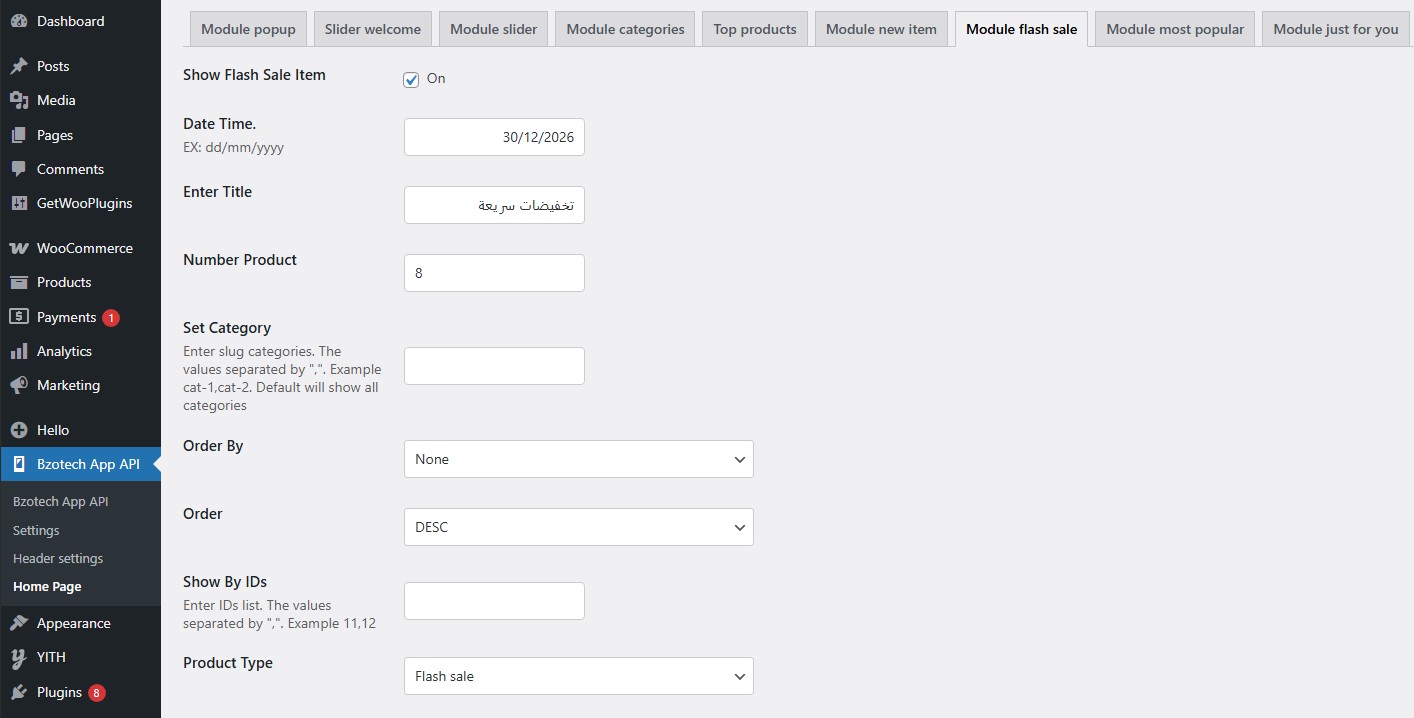
Show flash sale item: Show or hide flash sale item box
Date time: Set time to end the flash sale
Enter title: Enter title for new item box
Number product: Enter the number of product displaying
Set category: Config which product categories to display. Enter slug categories. The values separated by “,”. Example cat-1,cat-2. Default will show all categories
Order by: Order products by: None (default), ID, Author, Title, Name, Date, Last Modified Date, Parent, Post views.
Order: “DESC” (descending) sorts from the highest to the lowest; “ASC” (ascending) sorts data from the lowest value to the highest.
Show by IDs: Enter IDs list. The values separated by “,”. Example 11,12
Product Type: Select product type to display: Default, Featured Products, Best Sellers, On Sale (product has sale price), Top rate, Most view, Flash sale(simple product AND has end sale date).
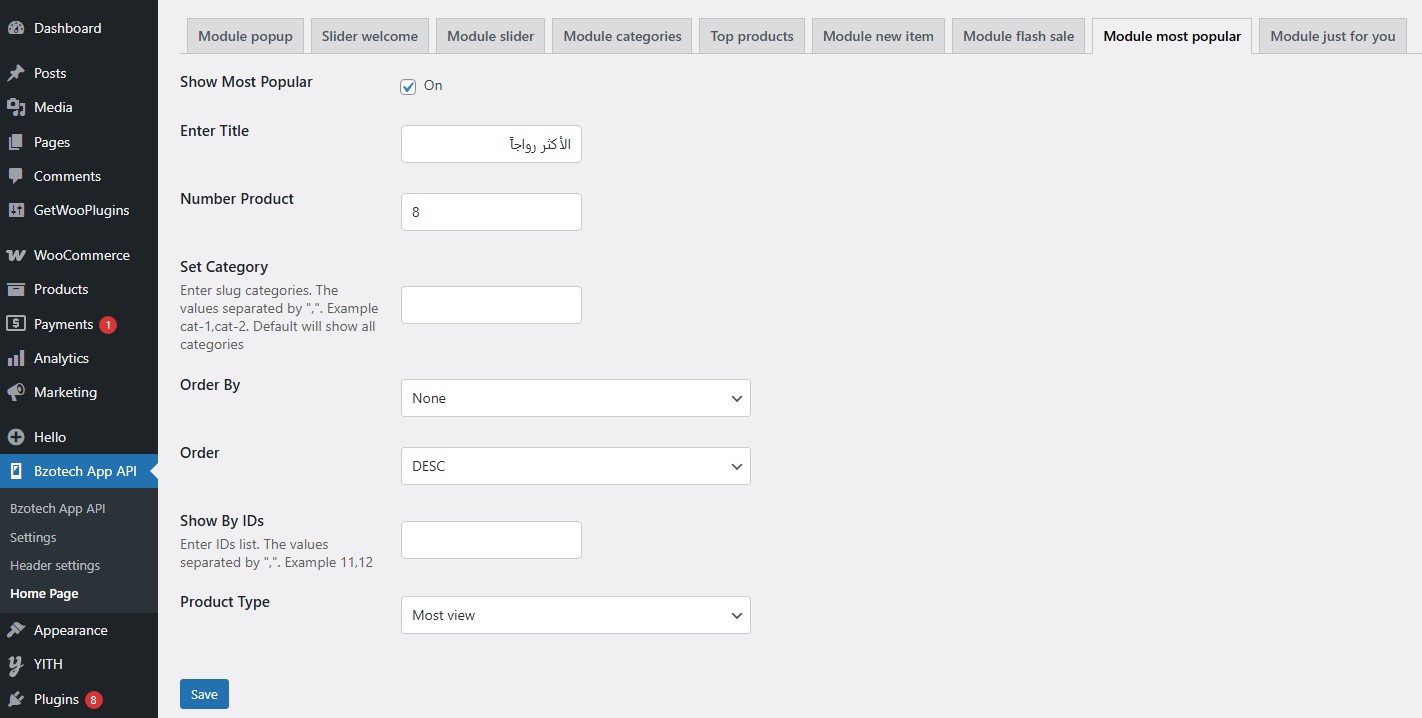
Show Most Popular: Show or hide most popular box
Enter title: Enter title for new item box
Number product: Enter the number of product displaying
Set category: Config which product categories to display. Enter slug categories. The values separated by “,”. Example cat-1,cat-2. Default will show all categories
Order by: Order products by: None (default), ID, Author, Title, Name, Date, Last Modified Date, Parent, Post views.
Order: “DESC” (descending) sorts from the highest to the lowest; “ASC” (ascending) sorts data from the lowest value to the highest.
Show by IDs: Enter IDs list. The values separated by “,”. Example 11,12
Product Type: Select product type to display: Default, Featured Products, Best Sellers, On Sale (product has sale price), Top rate, Most view, Flash sale(simple product AND has end sale date).
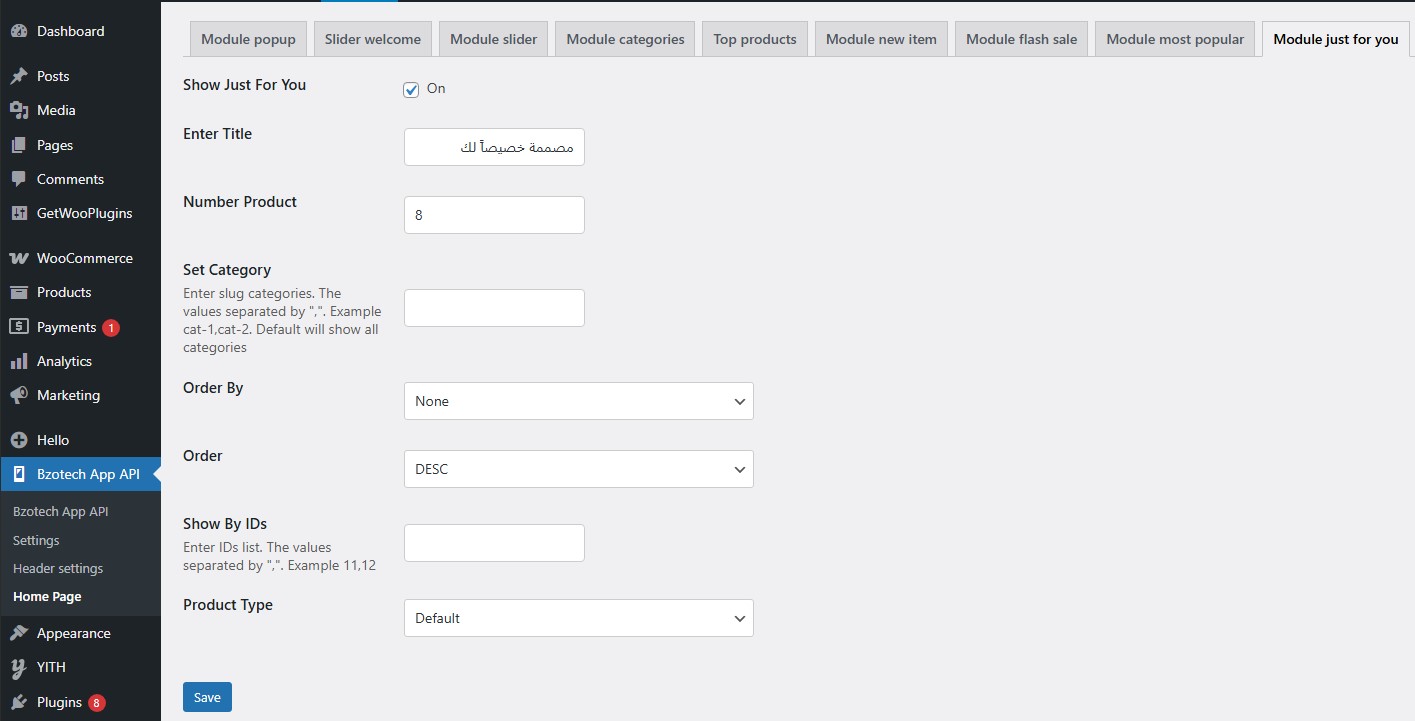
Show just for you: Show or hide just for you box
Enter title: Enter title for new item box
Number product: Enter the number of product displaying
Set category: Config which product categories to display. Enter slug categories. The values separated by “,”. Example cat-1,cat-2. Default will show all categories
Order by: Order products by: None (default), ID, Author, Title, Name, Date, Last Modified Date, Parent, Post views.
Order: “DESC” (descending) sorts from the highest to the lowest; “ASC” (ascending) sorts data from the lowest value to the highest.
Show by IDs: Enter IDs list. The values separated by “,”. Example 11,12
Product Type: Select product type to display: Default, Featured Products, Best Sellers, On Sale (product has sale price), Top rate, Most view, Flash sale(simple product AND has end sale date).
Check if the app code is running OK
Use yarn:
yarn start
yarn android
cd iOS
pod install
cd ..
yarn ios
Use npm:
npm start
npm run android
cd iOS
pod install
cd ..
npm run ios
Change App ID (Android) and Bundle ID (iOS)
npx react-native-rename "Vegestable App” -b "com.bzotech.vegestableapp" --skipGitStatusCheck

"Vegestable App”: [new app name]
"com.bzotech.vegestableapp":[new appId com.companyname.newappname]
Go to package.json → "version"
Android: android/app/build.gradle → versionCode and versionName
IOS: ios/YourAppName.xcodeproj/project.pbxproj or in Xcode → General → Version & Build
Google Play requires .aab (Android App Bundle), no more .apk.
Create key signing (once time creation)
keytool -genkey -v -keystore my-release-key.keystore -alias my-key-alias \
-keyalg RSA -keysize 2048 -validity 10000
Save file my-release-key.keystore to android/app/
Configure key in android/gradle.properties
MYAPP_UPLOAD_STORE_FILE=my-release-key.keystore
MYAPP_UPLOAD_KEY_ALIAS=my-key-alias
MYAPP_UPLOAD_STORE_PASSWORD=your-store-password
MYAPP_UPLOAD_KEY_PASSWORD=your-key-password
Add signing config in android/app/build.gradle
android {
	signingConfigs {
		release {
			storeFile file(MYAPP_UPLOAD_STORE_FILE)
			storePassword MYAPP_UPLOAD_STORE_PASSWORD
			keyAlias MYAPP_UPLOAD_KEY_ALIAS
			keyPassword MYAPP_UPLOAD_KEY_PASSWORD
		}
	}
	buildTypes {
		release {
			signingConfig signingConfigs.release
			shrinkResources true
			minifyEnabled true
			proguardFiles getDefaultProguardFile("proguard-android.txt"), "proguard-rules.pro"
			}
		}
}
Build release
cd android
./gradlew bundleRelease
You can find .aab file in android/app/build/outputs/bundle/release/app-release.aab.
Check out here to make your app publishing ready for Google Play Store
https://facebook.github.io/react-native/docs/signed-apk-android.
Requirements:
Open IOS project
cd ios
pod install
open YourAppName.xcworkspace
In Xcode, select scheme Release
Set up Team & Bundle ID
Go to Xcode → Target → Signing & Capabilities
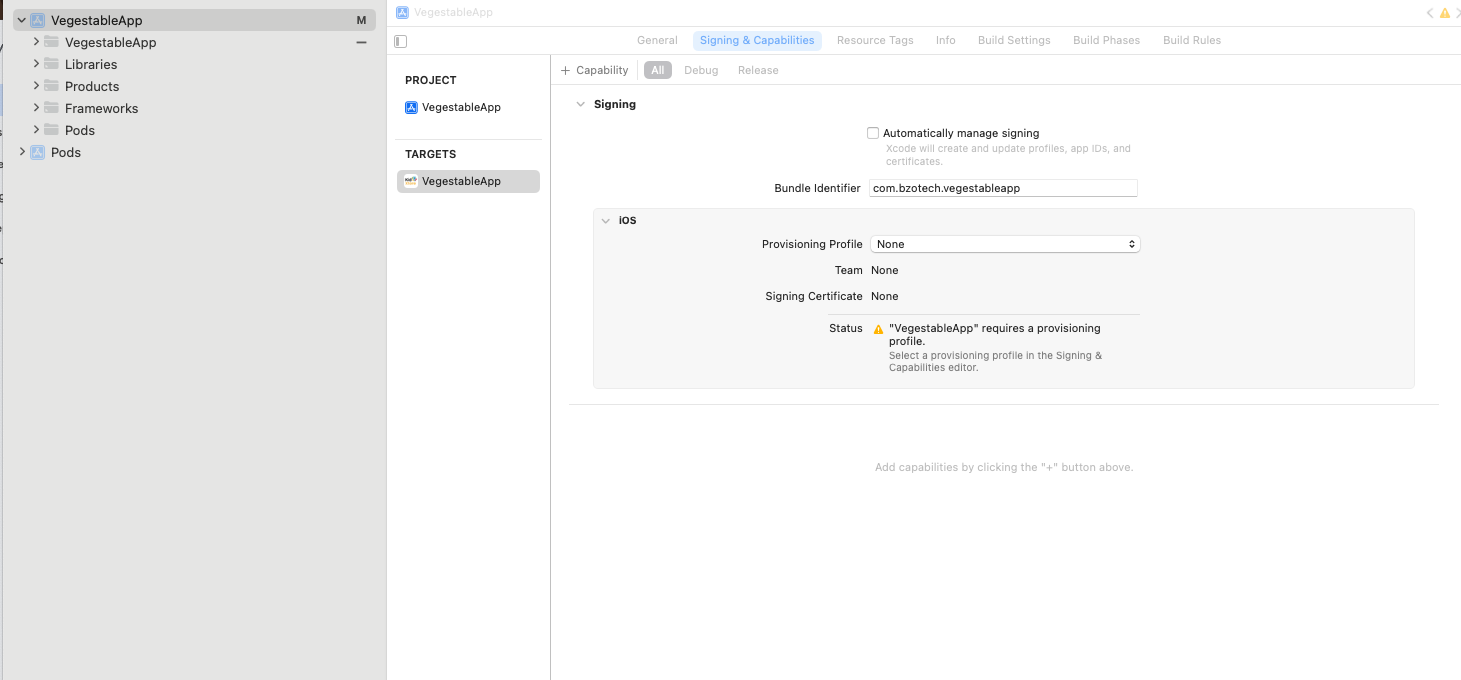
Select Team.
Set Bundle Identifier (it should be unique, for example:com.company.app) to match the name you just changed.
Create archive
Go to Xcode menu → Product → Archive
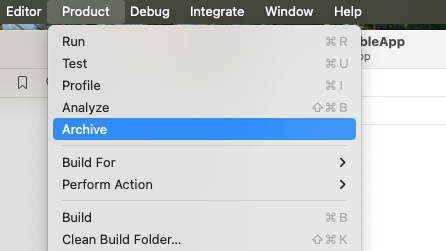
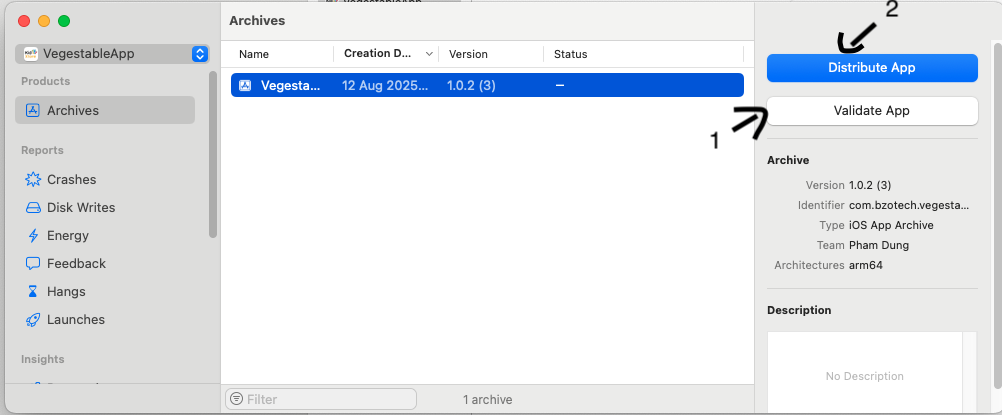
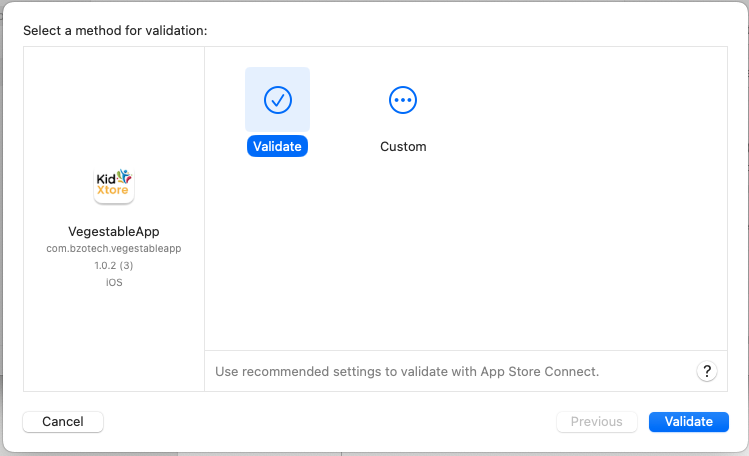
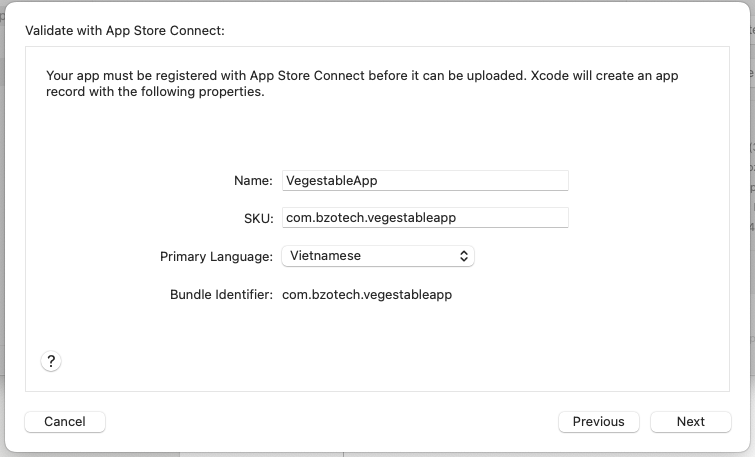
Recheck the information in the dialog then click Next.
Wait it running until finishing. If it returns a warning as below, skip the warning, → click Done
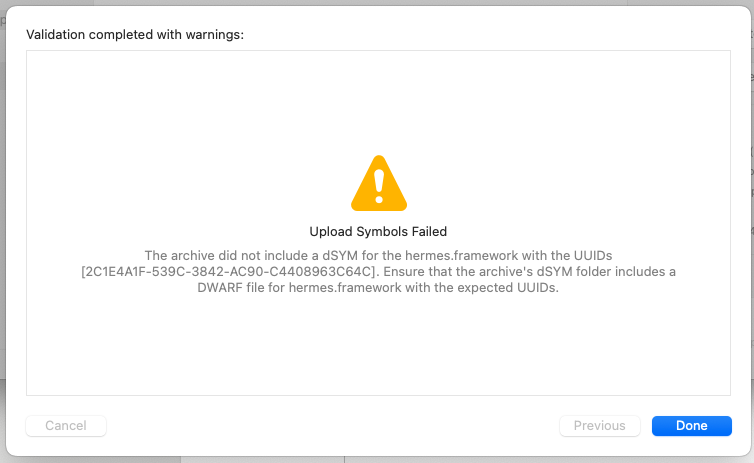
After validating, click Distribute.
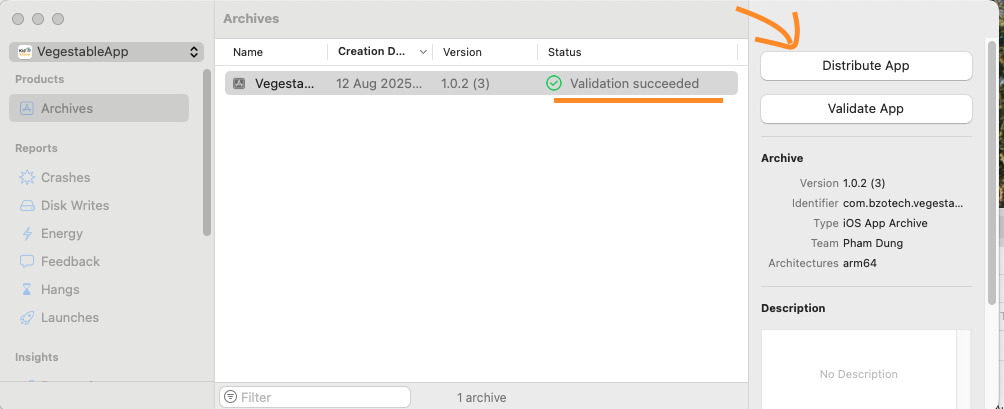
Choose App Store Connect → Distribute.
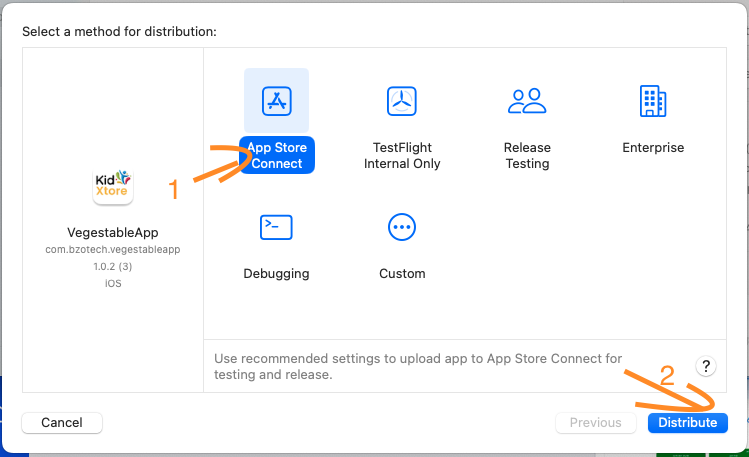
It will automatically upload to the web store. Refresh the website several times to see if it has been uploaded.
To make your app ready to publish to Apple App Store follow tutorials in this video
https://facebook.github.io/react-native/docs/running-on-device#building-your-app-for-production.
API specification
WordPress REST API https://developer.wordpress.org/rest-api/
WooCommerce REST API https://woocommerce.github.io/woocommerce-rest-api-docs/#introduction